Add an item on your phone
Four short steps. Take your time.
1Get in
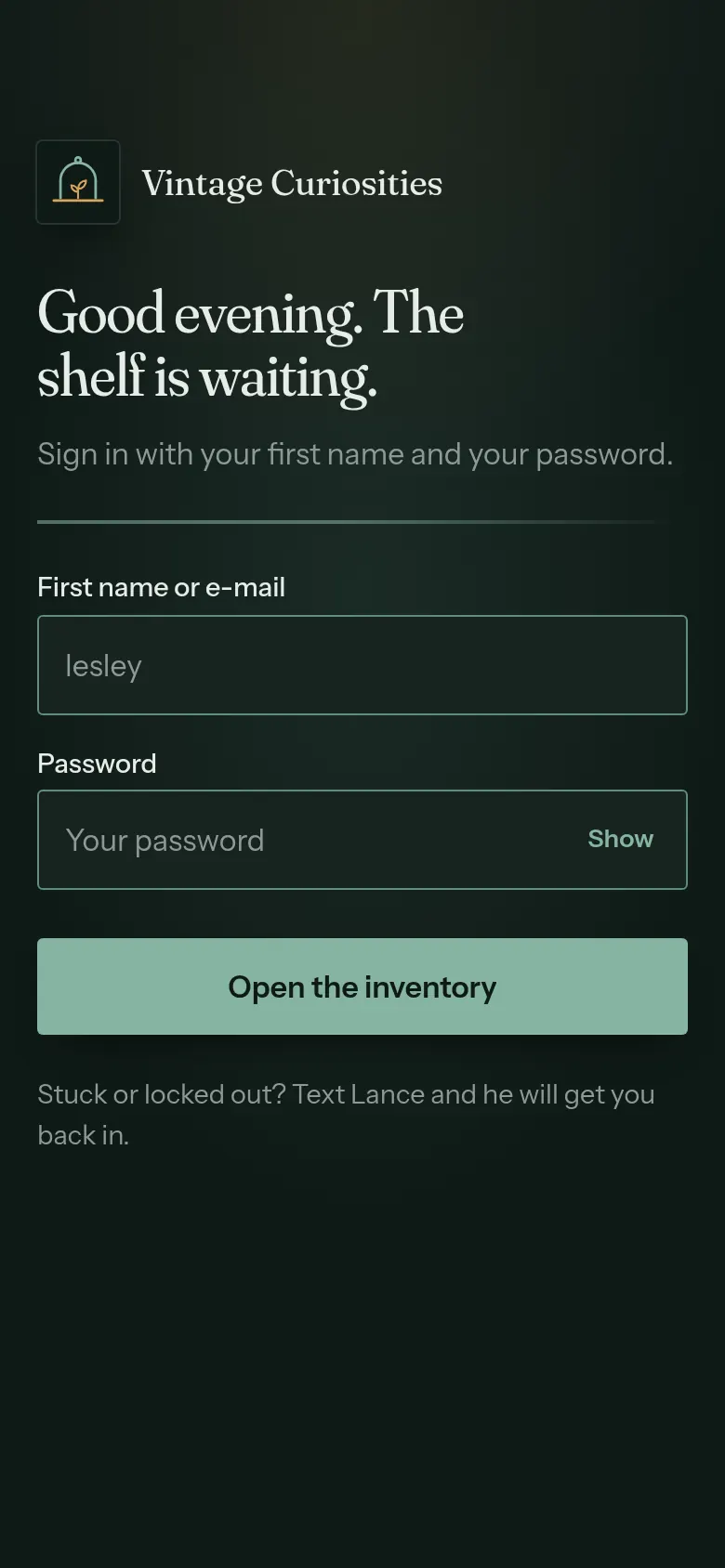
- Go to inventory.silverwulf.org
- Sign in with your first name (Lesley) and the password Lance gives you.
- Put it on your home screen so it is one tap next time. On an iPhone, tap Share, then tap Add to Home Screen.
2Add an item
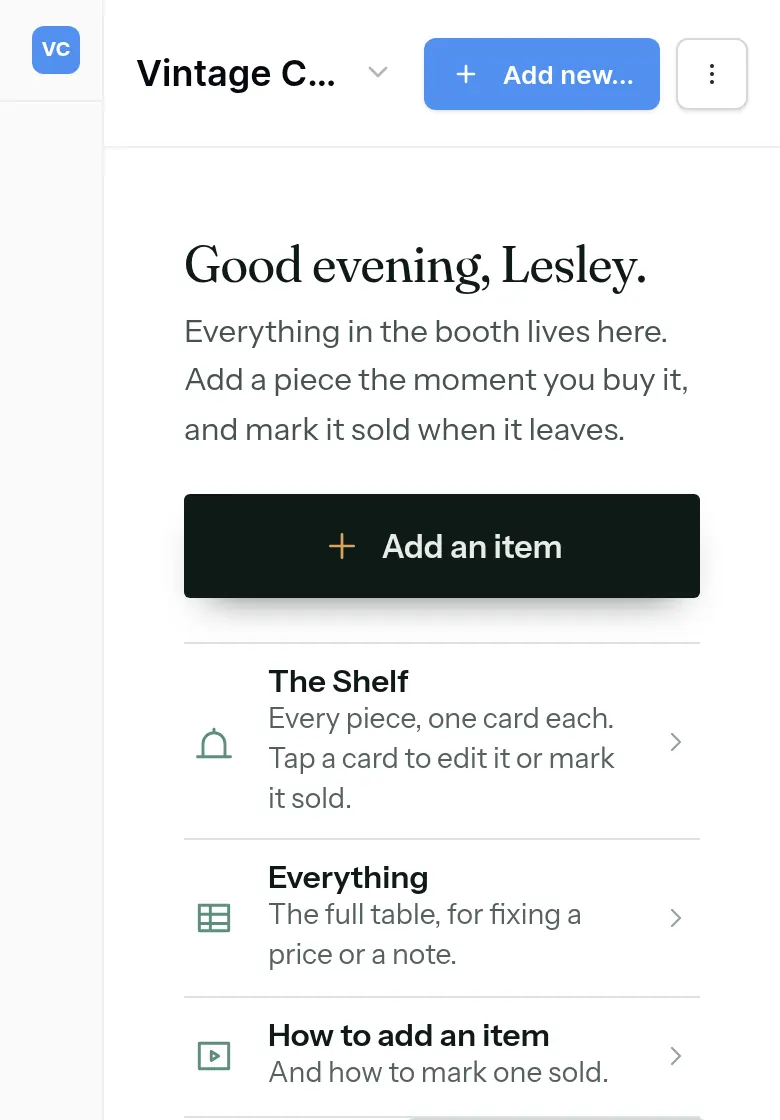
Tap Add an item.
Fill in the form, one piece at a time. Each box has a name above it:
- Photo: take one now, or choose one you already have.
- What is it?: a few words, like “Green glass vase”.
- What you paid: just the number. A $25 ticket at half off is 12.50.
- Who paid: pick the name.
- Where you bought it: for example, “Estate sale”.
- Sale price: what we will ask for it.
- Category: this one is optional. Skip it if you like.
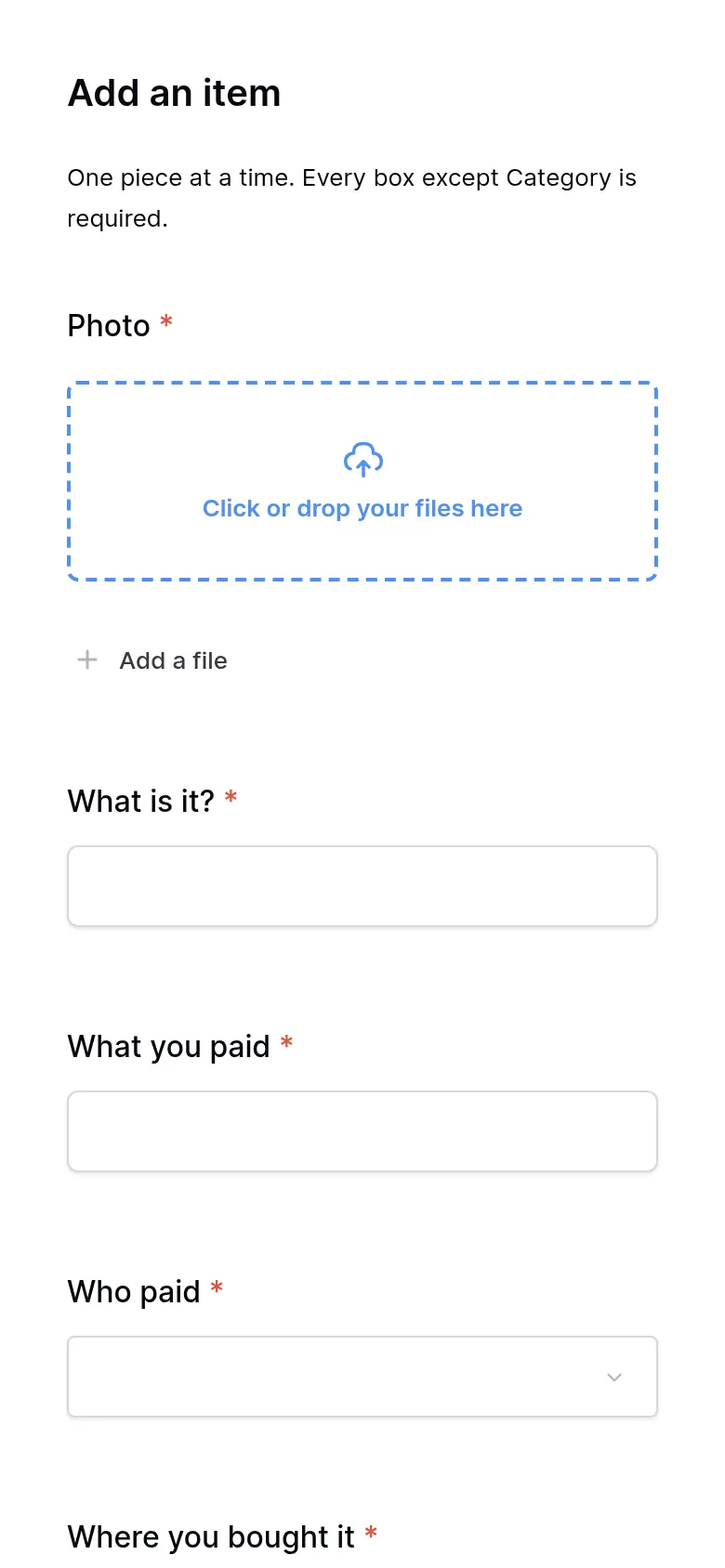
When every star box is filled in, tap Submit. You can’t save until they are all filled in.
3Your tag number
Open The Shelf. Your newest piece is first.
The number that starts with VC- is the one that goes on the price tag. The piece shows up on the website the next morning.

4Mark it sold
- Open The Shelf and tap the piece.
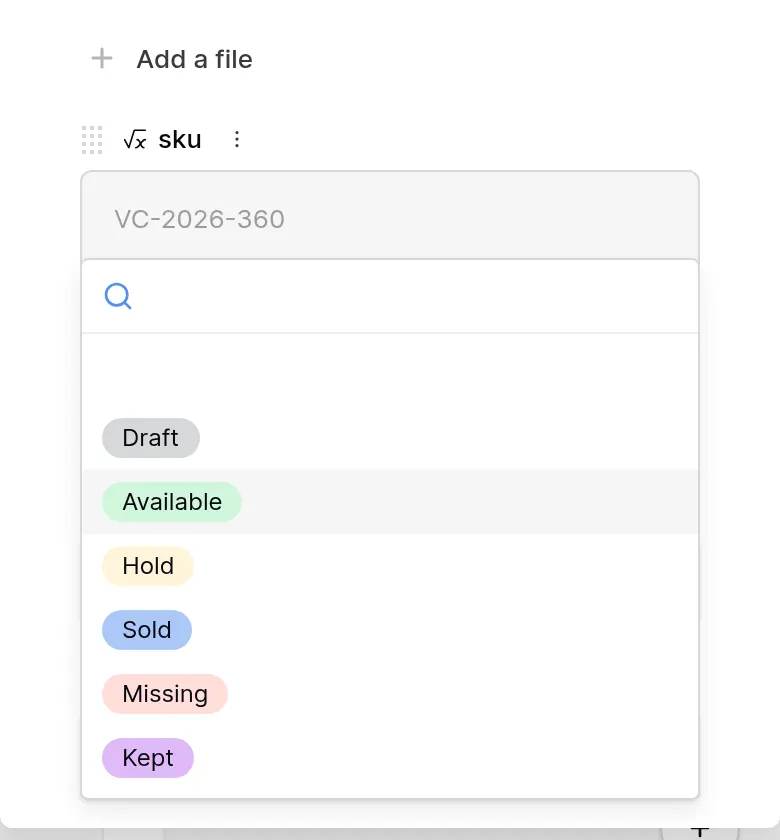
- Find the box called status.
- Change it to Sold.
Good to know
You need a phone signal (or Wi-Fi) to add an item. If the bars are gone, wait until they come back.